

A cover sheet, a signed page, and the supporting material often arrive as separate files, even when the recipient wants one PDF in a specific order. Teams that repeat this work can run Stirling PDF on an internal host and use a browser to merge, rotate, and compress documents.
The repository showed about 96,800 stars on November 17. A November 13 issue reports misplaced page numbers on rotated or cropped pages. It is a good reason to check those pages in the exported file. Repository · Page-number report
Try one delivery packet
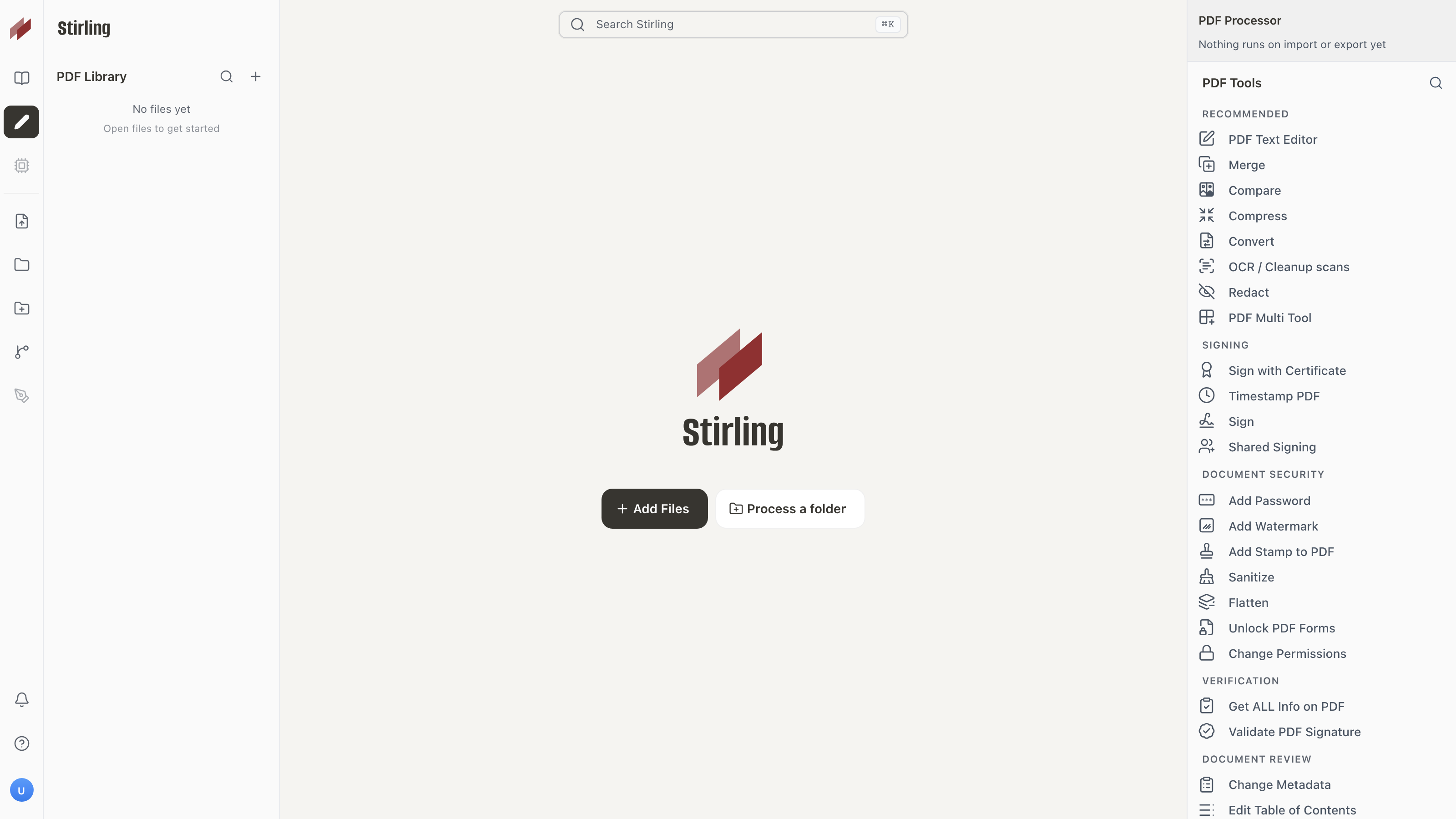
The workspace puts common operations such as merge, compress, and conversion in one tool picker. Start with Add Files and find Merge in the right-hand list.
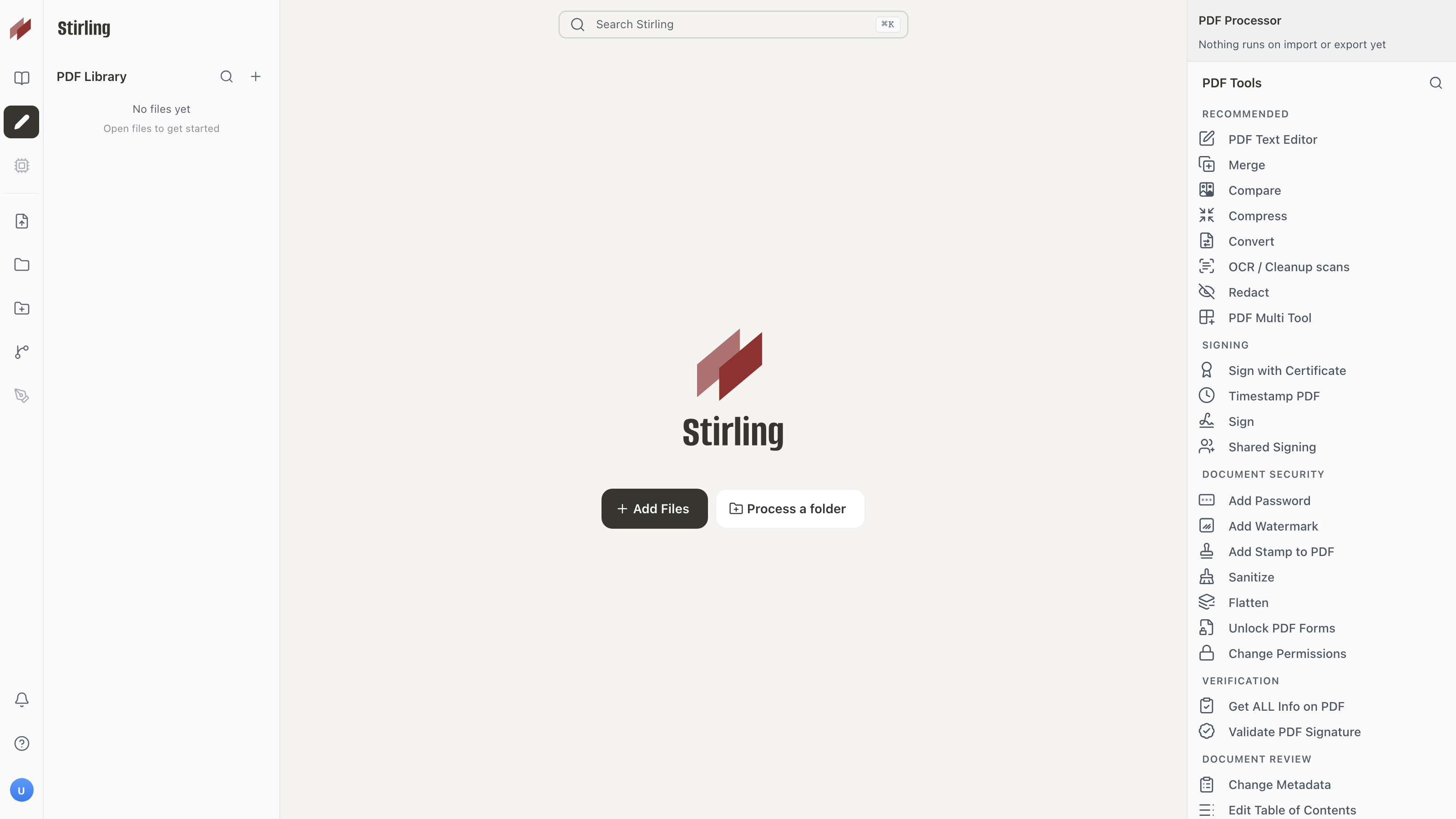
Figure 1. The workspace and tool picker, from the project README. Original image
Use a one-page sample cover and a three-page sample attachment, both free of sensitive information. In Merge, drag the cover to the top and export. Check for four pages and confirm that page two starts the attachment. Rotate individual scans in Page Editor if needed. If you add page numbers, inspect the rotated or cropped pages. Keep any digitally signed originals separately because merging breaks the original signatures. Page operations guide
Decide where it should run
The official Docker guide is a starting point. For a test on your own machine, bind the published port to 127.0.0.1:8080 and open it in a local browser. For team use, keep the service on an approved internal network, configure sign-in, and confirm how stored files will be handled. Who can read a document depends on the deployment and how people use it. Docker installation
The repository is open-core. Its license specifies MIT-covered code and directories with separate terms. Check the relevant directories before redistributing code or integrating commercial features. Try a few sample attachments and inspect the results before adopting it for the team. Repository license